The Ultimate Guide to Setting Up Uno Webcam Borders
How to leverage our powerful customization tools to make your stream truly unique
A setup tutorial to show you how to leverage our powerful customization tools to make your stream truly unique.
We believe your stream should look as professional as your gameplay. Whether you're running a sci-fi themed marathon or diving into ARC Raiders, a high-quality webcam border is the perfect way to "kit out" your broadcast.
In this guide, we’ll walk you through the precise technical setup and show you how to leverage our powerful customization tools to make your stream truly unique.
1. The Foundation: Technical Setup for Precision
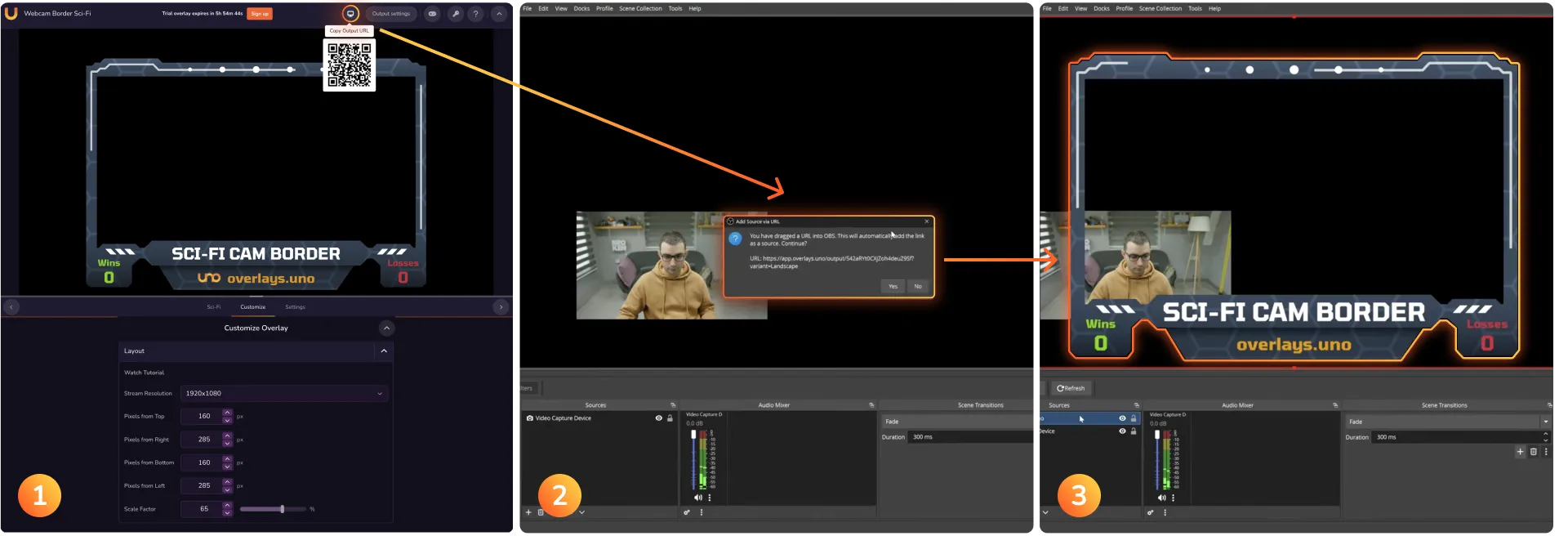
While you could just drag and drop a URL into OBS and call it a day, we recommend a more precise method to ensure your border is perfectly responsive and crisp.
Align Your Resolution: Before doing anything in OBS, ensure your aspect ratio and stream resolution in the Uno control app match your streaming software. If you’re on a standard 16:9 landscape stream, both should reflect that.
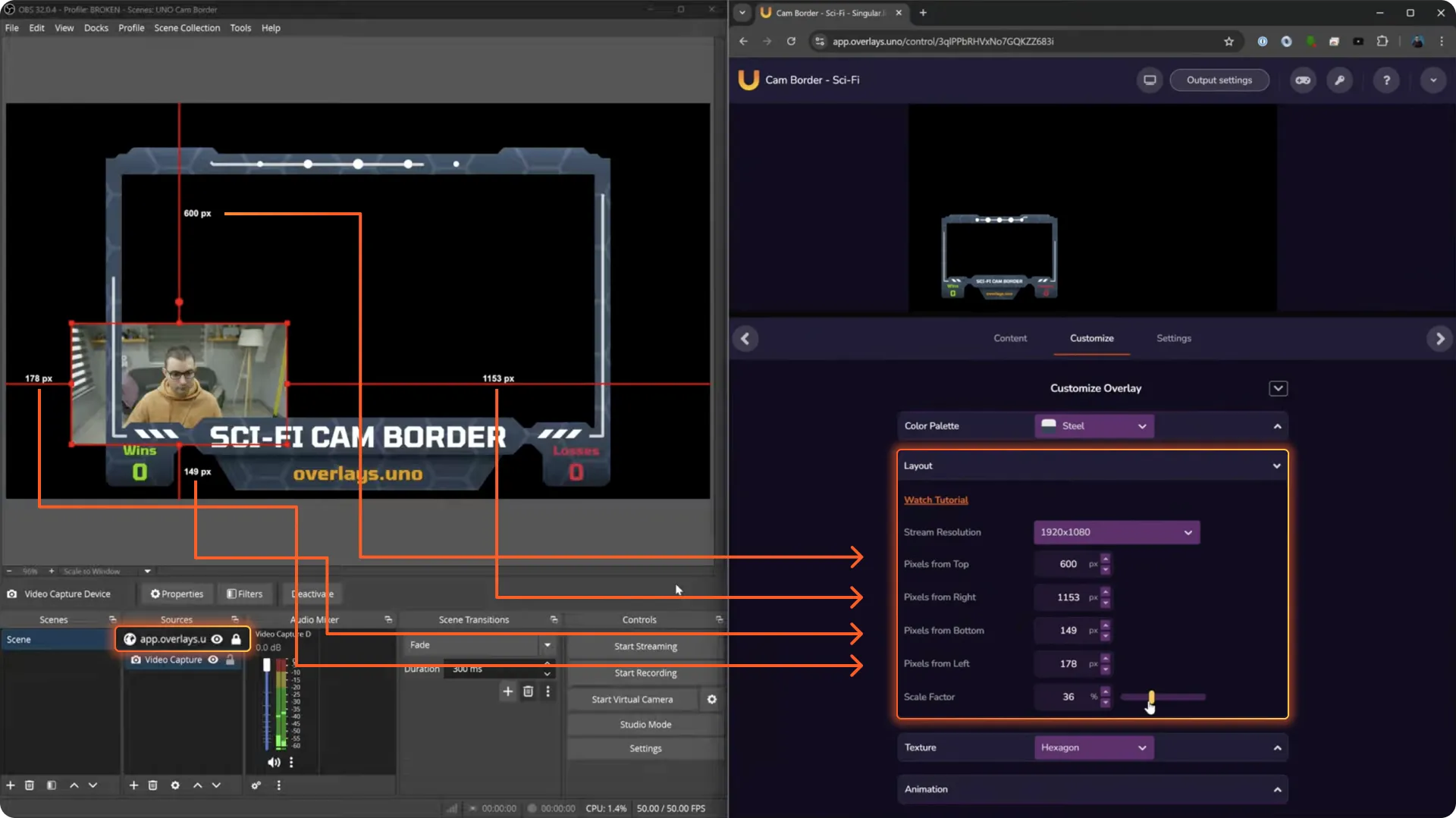
The "Browser Source" Rule: When you add the output URL as a browser source, drag it directly into OBS. This automatically sets the width and height to match your output resolution, which is crucial for alignment.
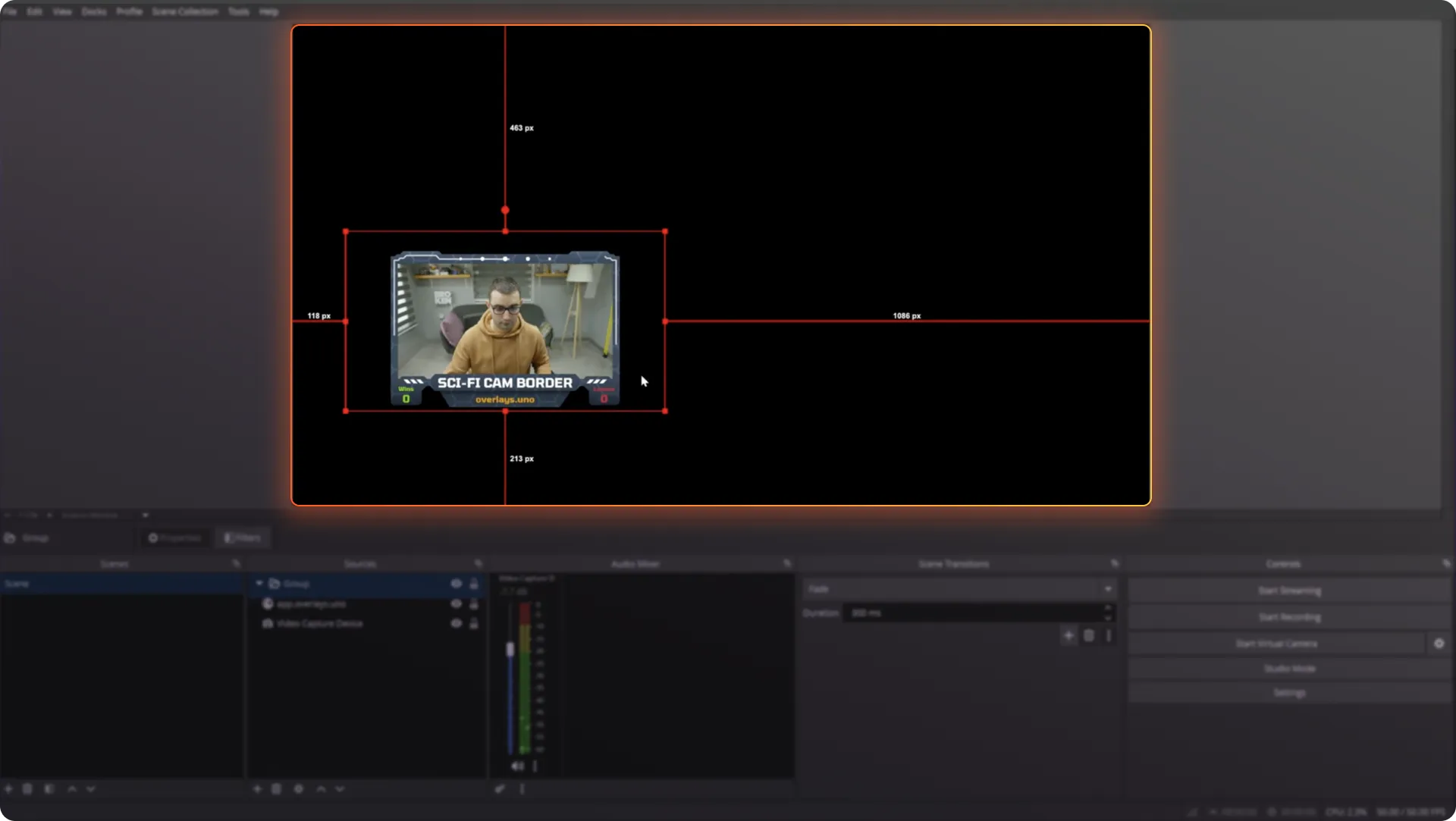
Positioning via the App: Once the source is in OBS, lock it. Instead of dragging the border around in OBS, use the Uno control app to dial in the position and scale. Match the top, right, bottom, and left pixel values in the dashboard to line up perfectly with your webcam layer.
Pro Tip for Cropping: If you need a custom shape (like a square crop), set your webcam's bounding box to "No Bounds" in OBS. This ensures that when you use Alt + Click to crop, the bounding box updates correctly, allowing you to match those new values in our dashboard.
Our borders aren't just static images; they are living, breathing parts of your stream. With our dashboard, you can change the look and feel in real time without ever opening editing software.
Dynamic Elements: Don’t want text at the bottom? Toggle it off with a single click. Need it back for a special event? Turn it on and customize the subtext instantly.
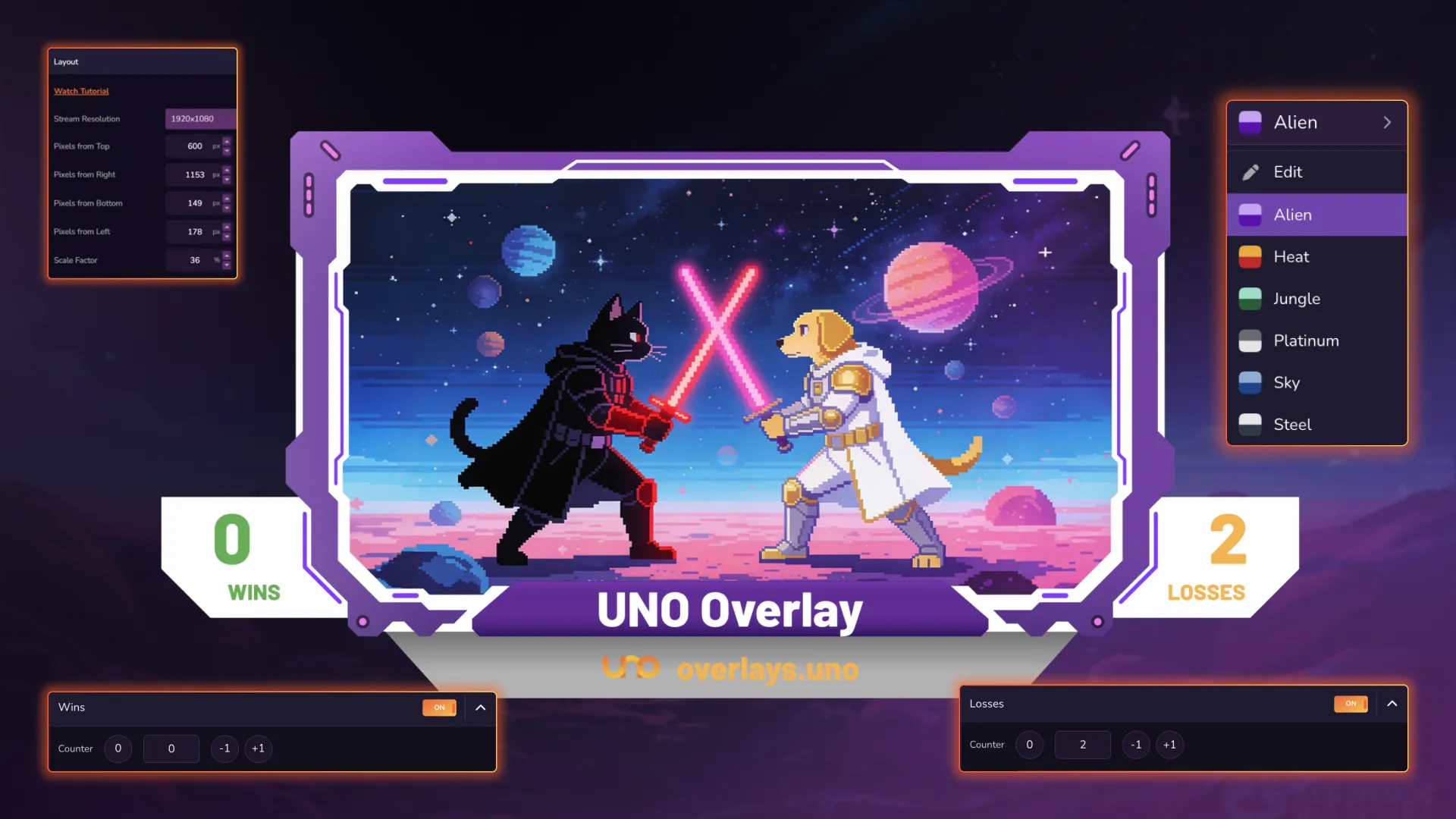
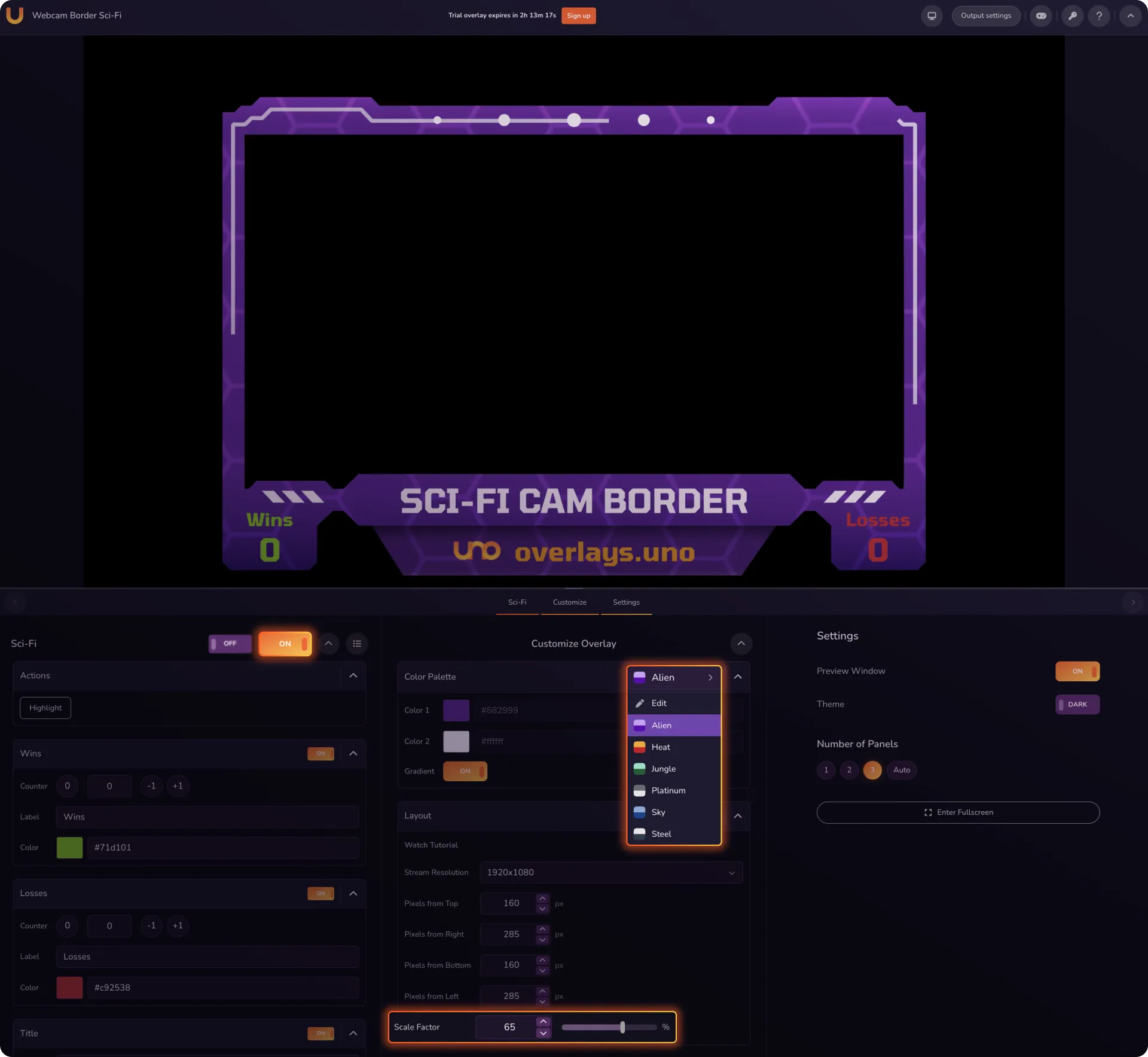
Visual Flair: From changing color schemes to selecting different backgrounds—like our popular hexagon pattern—you can fit any aesthetic. You can even adjust the "Scale Factor" of individual elements to make the border as subtle or as bold as you like.
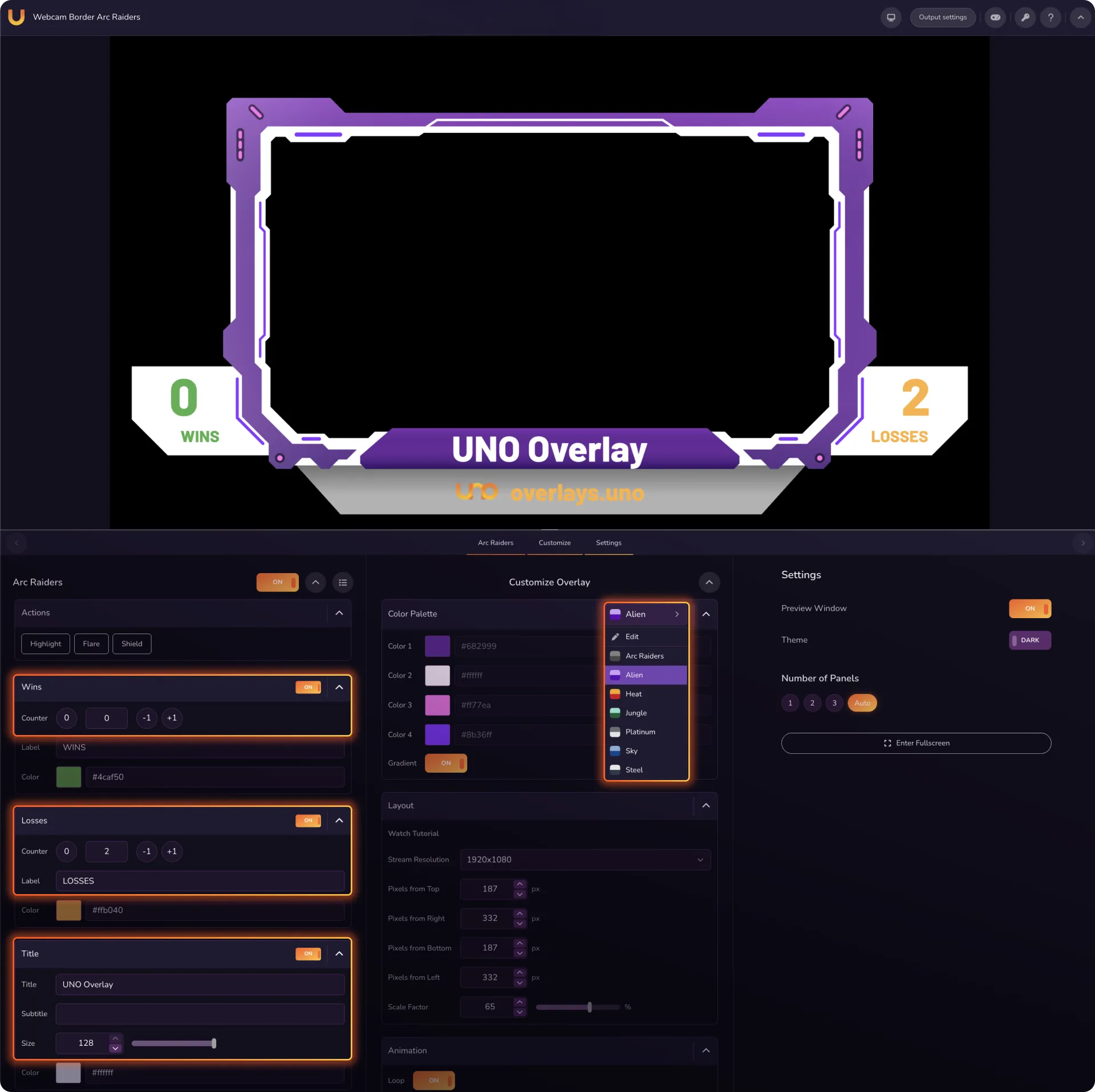
We want your viewers to be part of the action. That’s why many of our borders, like the Sci-Fiand ARC Raiders editions, include built-in interactive features.
Live Counters: Keep track of your wins, losses, eliminations, or successful extractions. These counters can be updated live while you’re talking to your audience.
Triggered Animations: For specific games, we’ve included themed animations. For instance, in our ARC Raiders border, you can trigger a "shielding up" animation or a "Raider flare" effect to react to in-game moments.
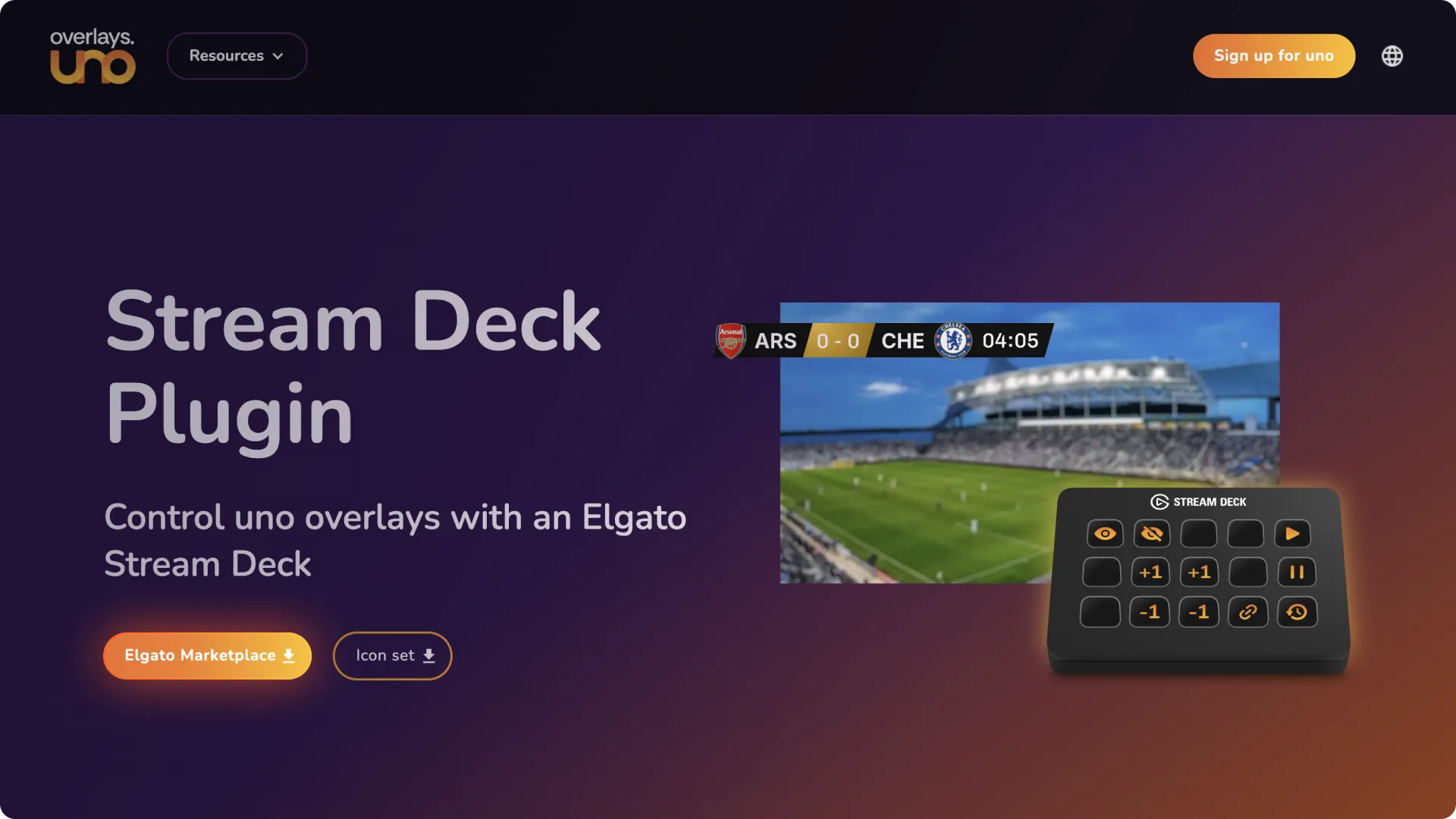
You shouldn't have to tab out of your game to update a win counter or change a color. To make things even easier, Uno Overlays offers a Stream Deck plugin. This allows you to control every aspect of your overlay—triggering animations, updating text, or switching styles—with the press of a physical button.
Join the Future of Streaming
Whether you use OBS, Prism Live Studio, or Streamlabs, our borders are designed to work seamlessly across all platforms. Stop streaming in the past and start raiding in style. Head over to overlays.uno to sign up for your free account and start customizing your setup today!
Regístrate gratis
Regístrate para obtener una cuenta gratuita de uno, que te permitirá guardar superposiciones y mucho más.