Resources
*The following steps use OBS as an example, but the process is the same in Prism Live Studio and Streamlabs.
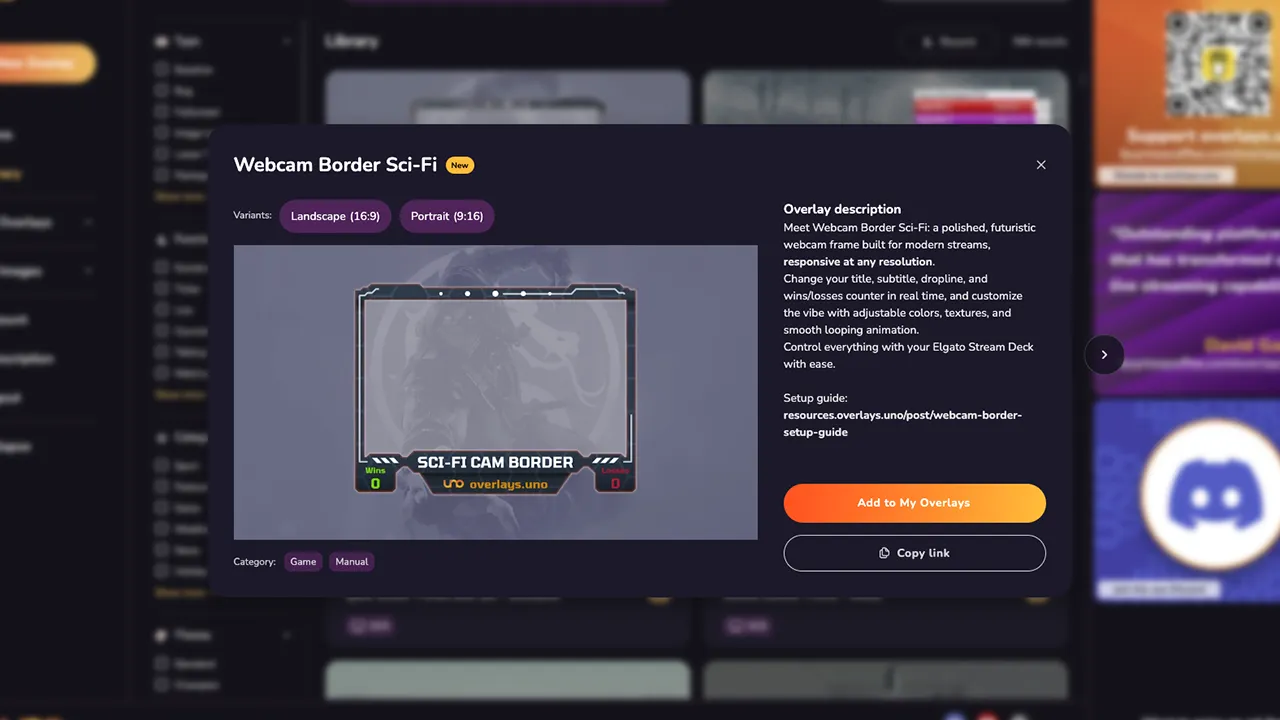
First, grab yourself a free uno Webcam Border from the overlays.uno library.
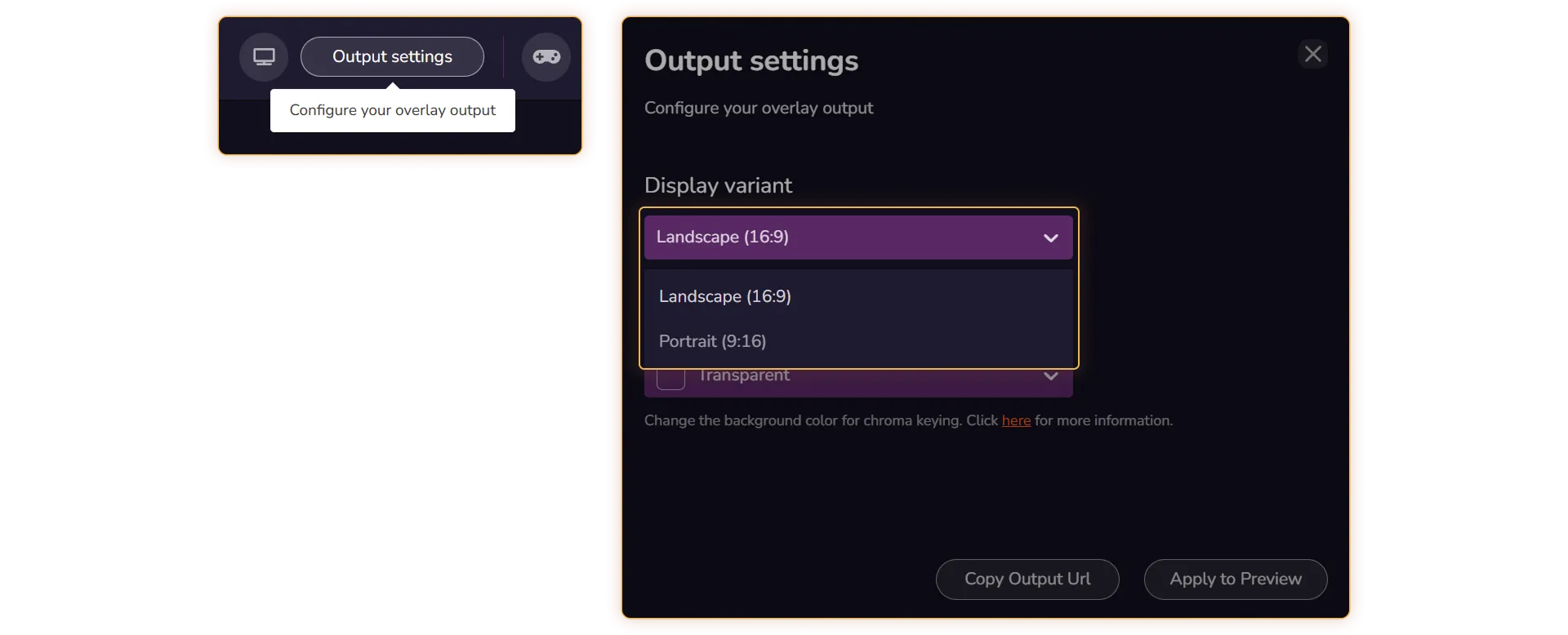
Set the Aspect Ratio under Output Settings > Display Variant.
Landscape – if you’re streaming in 16×9
Portrait – if you’re streaming in 9×16
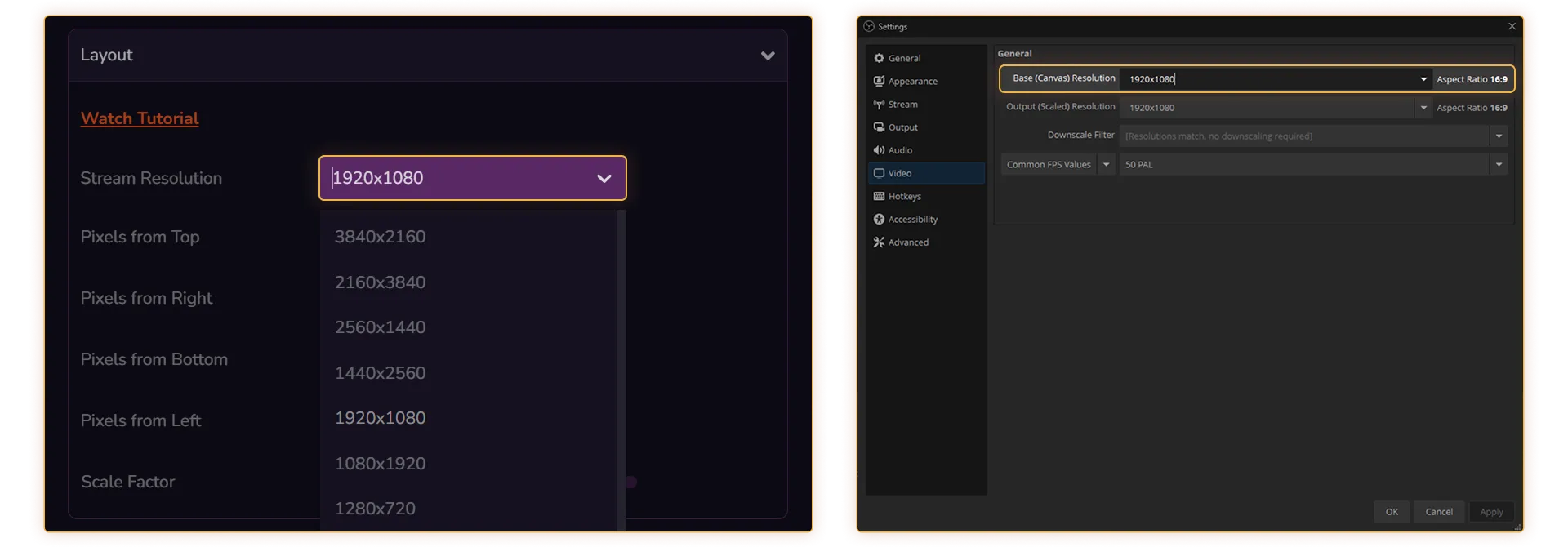
Match the Stream Resolution to the streaming software’s resolution.
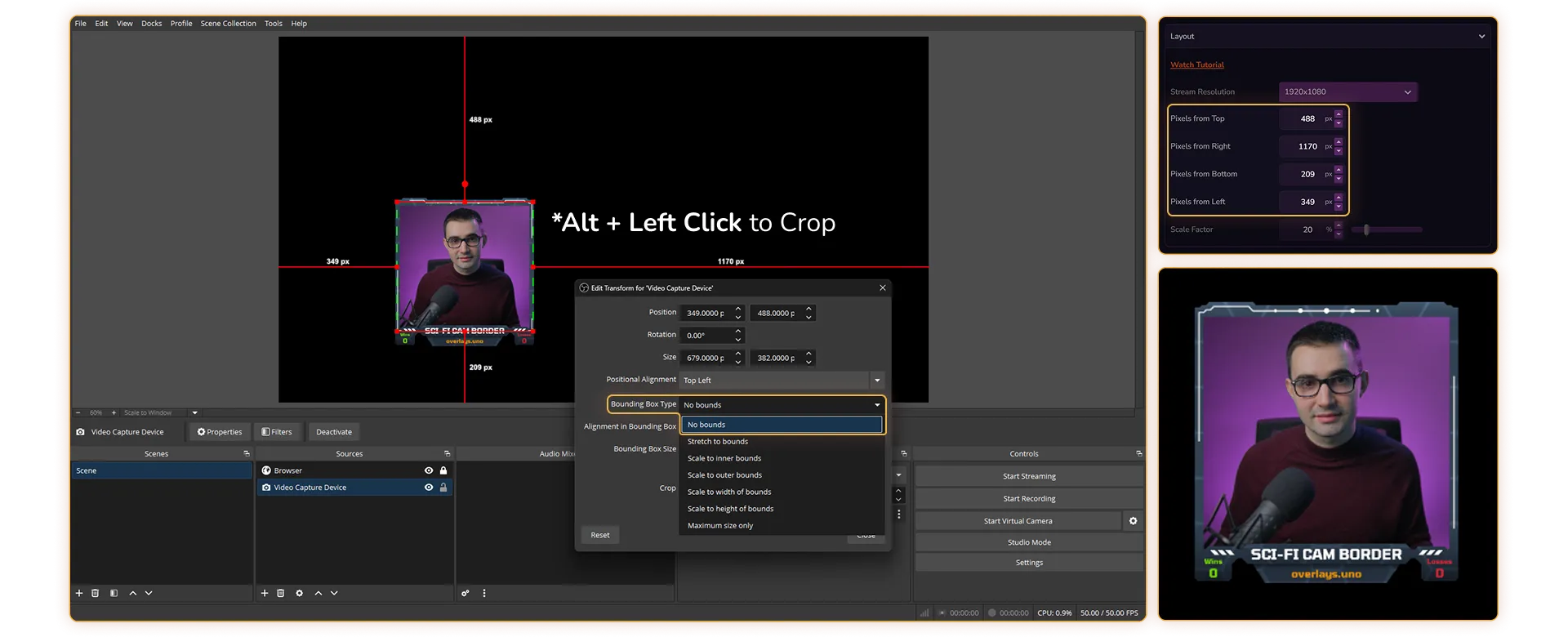
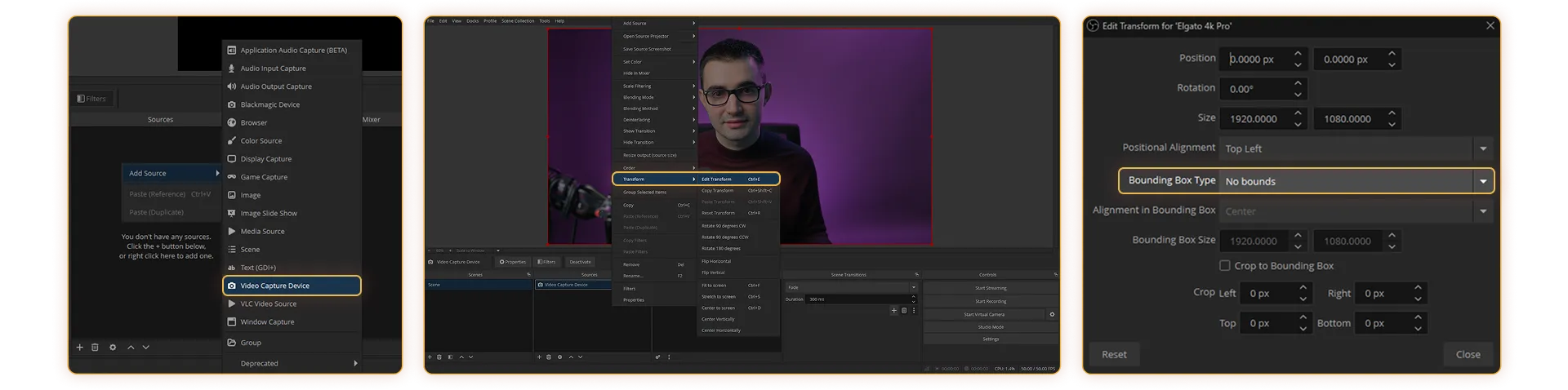
Add a Video Capture Device.
Right-click → Transform → Edit Transform (CTRL + E) → set Bounding Box Type to No bounds.
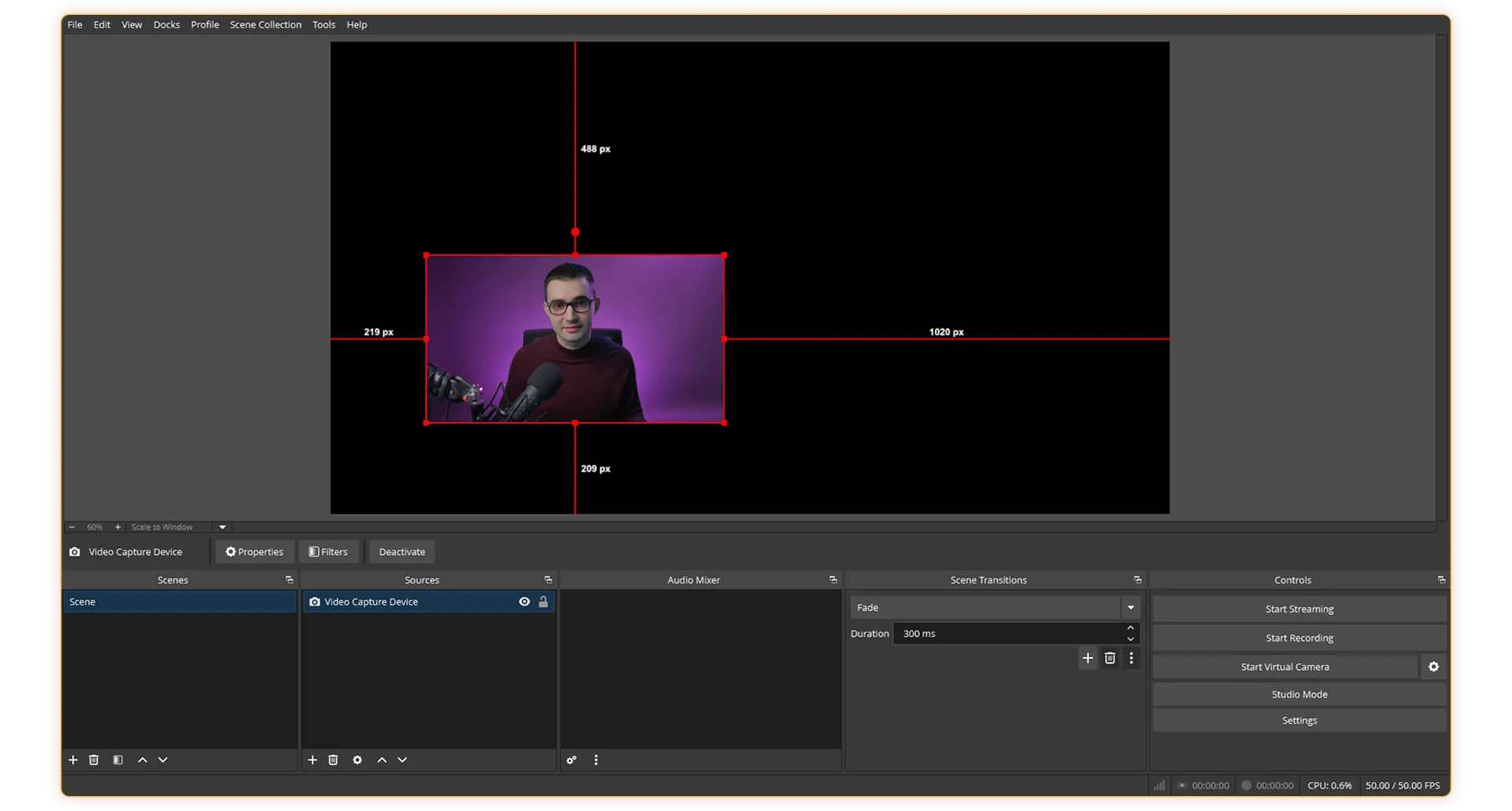
Position and size the webcam.
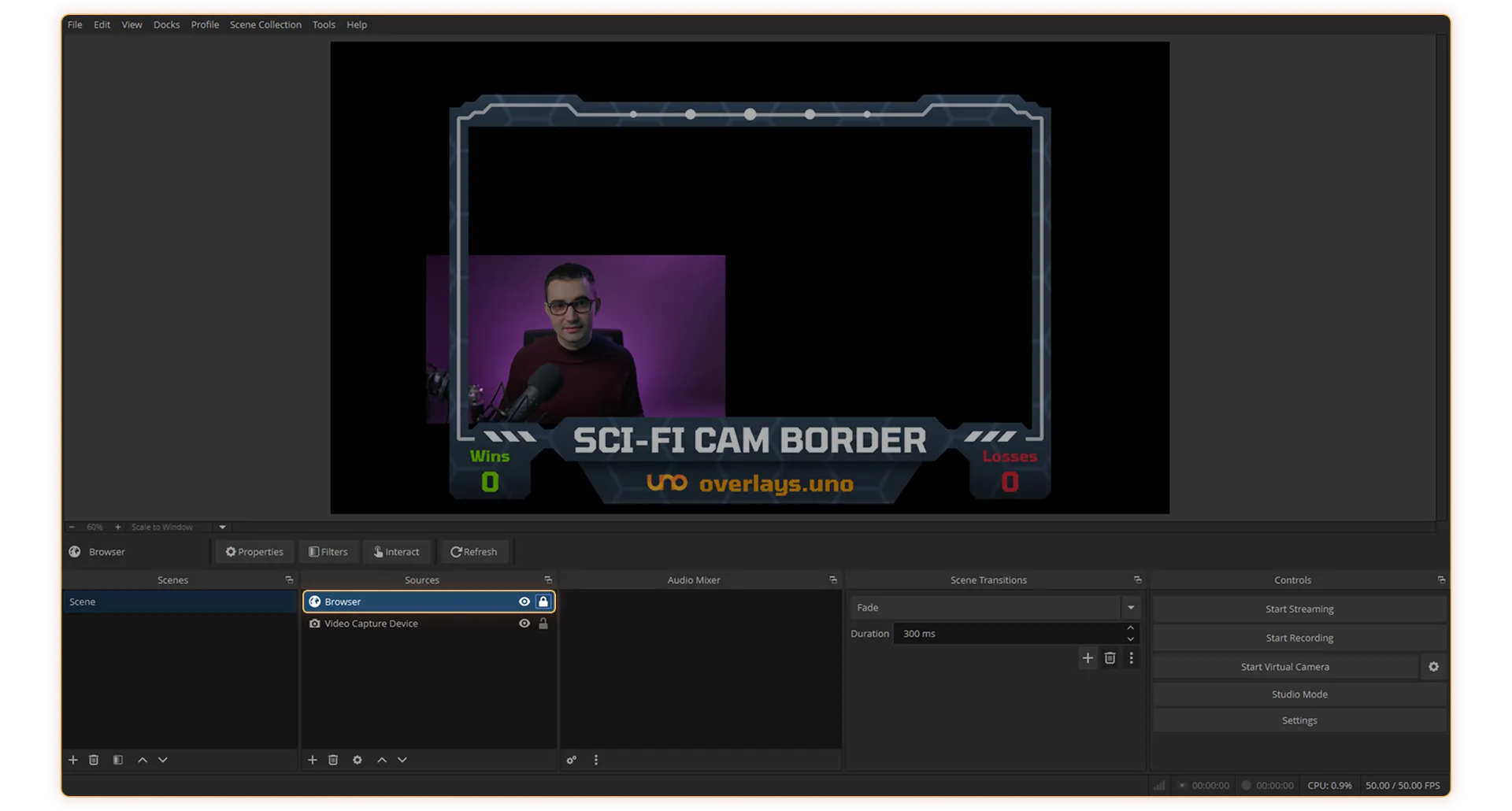
Add the Output URL as a browser source and set its Width and Height to match the stream resolution.

Lock the browser source to avoid accidentally moving it.
Set Top/Right/Bottom/Left pixels to match the webcam's position and size.
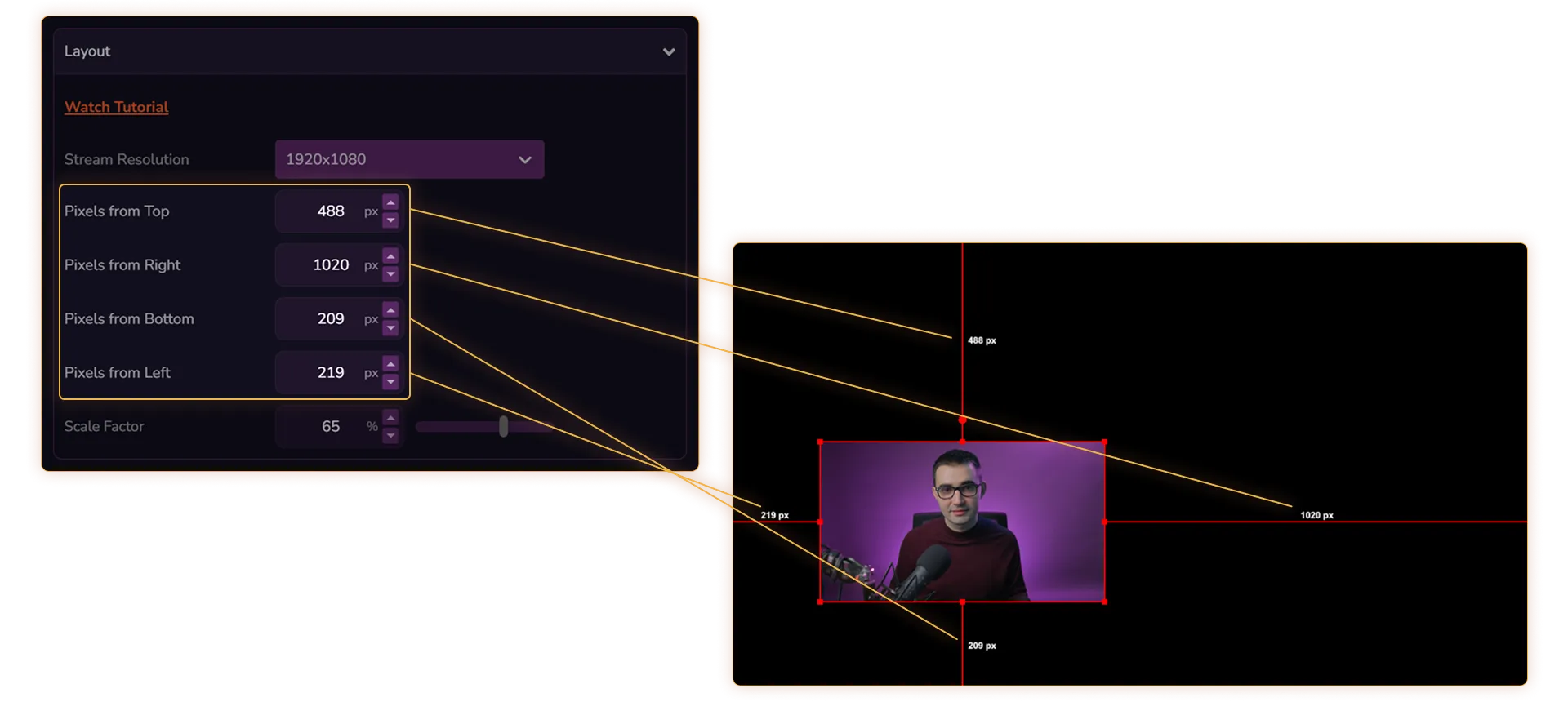
Adjust Scale Factor to fine-tune the layout.

If you want to crop the webcam to a square aspect ratio, use Alt + Left Click when cropping from any side, and again make sure to set the Bounding Box Type to No bounds. Otherwise, the cropped sides won’t show the correct pixel values that you need to copy over to Top / Right / Bottom / Left Pixels.